Chapter 6 Complete GitHub Workflow
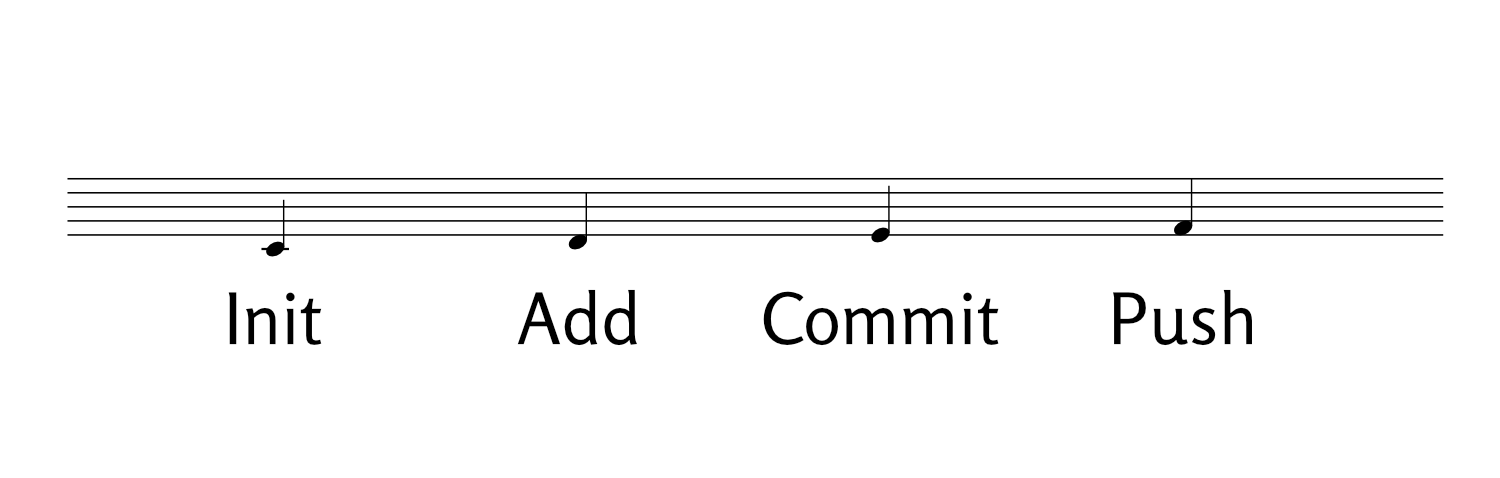
6.1 Getting Your Work on GitHub
Now that you have Git installed and authentication set up, let’s create your first repository and learn the simple workflow you’ll use every day.
6.2 Step 1: Create Repository on GitHub
- Click the green “New” button on GitHub
- Repository name:
my-project(or whatever you prefer) - Make it Public (required for free hosting)
- Don’t check “Add a README” (you already have one)
- Click “Create repository”
6.3 Step 2: Connect Your Local Site to GitHub
Copy the commands GitHub shows you, but here’s what you’ll run:
# Make sure you're in your project directory
cd ~/projects/my-project

# Create a sample file if you don't have any files yet
touch README.md
echo "# My Project" > README.md

# Add your changes
git add .
git commit -m "My project setup"

# Set branch to main (important!)
git branch -M main

# Connect to your GitHub repository
git remote add origin https://github.com/YOUR-USERNAME/my-project.git

# Push to GitHub
git push -u origin main
Replace YOUR-USERNAME with your actual GitHub username.
6.5 Daily Workflow Example
Here’s what a typical day looks like:
Morning (if you work on multiple computers):
After making changes:
git status  # See what you've changed
git add .   # Stage all changes
git commit -m "Updated content with new information"
git push    # Send to GitHub
That’s literally it! You now know everything you need to manage your project with Git and GitHub.
6.7 Troubleshooting
6.7.1 If you get an error about authentication:
- Make sure you’re using your Personal Access Token (not your password)
- Check that your token hasn’t expired
- Review the authentication setup from Chapter 4
6.7.2 If you get merge conflicts:
- This happens if you edit from multiple computers
- Run
git pullfirst, then resolve any conflicts in the files - Then
git add .,git commit, andgit push - If the merge conflict is not resolved, refer to my separate e-book on problems with diverging branches.
6.8 Next Steps
Congratulations! You now have:
- ✅ Git installed and configured
- ✅ GitHub account with secure authentication
- ✅ Your first repository
- ✅ A simple daily workflow
You’re ready to start building and maintaining your project with confidence!
What’s Next? Consider exploring:
- GitHub Pages for hosting your project
- Other hosting platforms for more advanced features
- GitHub Desktop if you prefer a visual interface
- VS Code integration for editing directly in your code editor