Chapter 3 Create Your GitHub Account
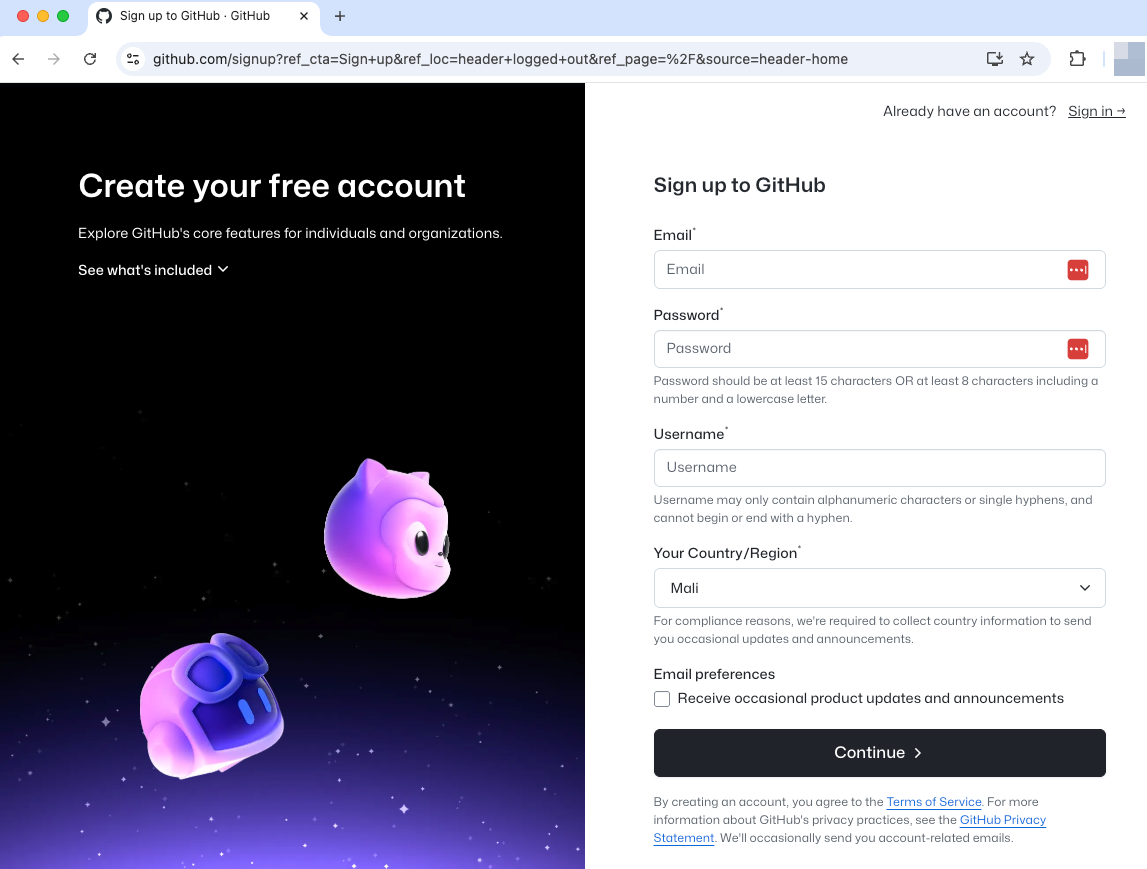
3.1 Visit GitHub
- Go to github.com
- Click the “Sign up” button (green button in top right)
3.2 Choose Your Username
⚠️ Important: Your username will be part of your professional identity online.
Good username examples:
john-smith-researchj.smith.phdjohnsmith-biodrjohnsmith
Avoid:
- Random numbers:
johnsmith12345 - Too casual:
coolguy2023 - Too long:
john-smith-professor-of-biology-at-university
3.3 Fill Out the Form
- Username: Choose carefully (see above)
- Email: Use your academic email if possible
- Password: Use a strong password
- Verify account: Complete the puzzle/verification
3.4 Choose Your Plan
- Free plan is perfect for academic use
- Includes unlimited public repositories
- Includes unlimited private repositories
- Click “Create account”
3.5 Complete Email Verification
- Check your email for verification message
- Click the verification link
- This activates your account
That’s it! Your GitHub account is now ready to use.
Next Chapter Preview: We’ll set up Personal Access Tokens and configure platform-specific authentication so your computer can securely communicate with GitHub.